


A sophisticated multi-room solution customized for you.
Autonomic offers a vast range of music streaming products for custom whole-home and commercial audio installations including amplifiers, streamers, media servers, and keypads.
Now Shipping
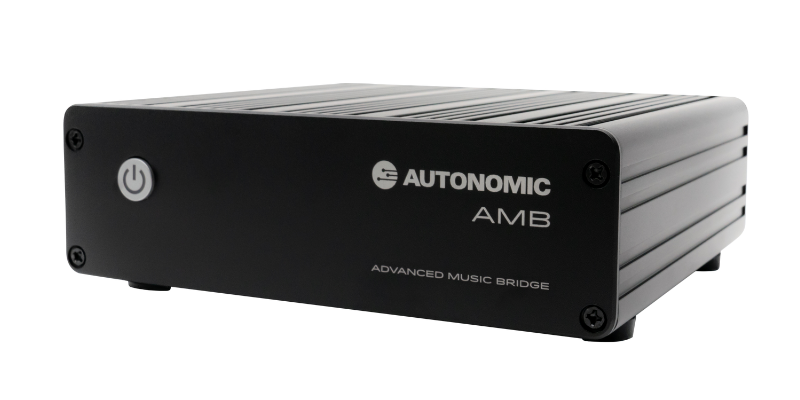
The Advanced Music Bridge works with eSeries MMS models to unlock the features of Mirage OS 7.0+ featuring native support of Apple Music, Calm Radio, and more!
Flexible Audio Over IP Technology

Bring digital entertainment to the most challenging to reach zones using our proprietary eAudiocast to deliver hi-res audio over the home's network with no special equipment required.

Natively Supported Streaming Music Services
Certified Hi-Res.
Pristine playback, everywhere.
The MMS supports reference quality 24-bit/192kHz high-resolution audio perfectly rendered through analog, coaxial digital, and USB outputs, in addition to eAudiocast network streams. Listen to music the way it was intended to be heard.
Control Your Way
Create playlists, favorites, scenes, and schedules from our TuneBridge® app or decora style in-wall keypads or integrate with popular third-party control systems.

Products You'll Love
Award-Winning
Media Servers

Play simultaneous streams of local music collections and the most popular streaming services with pristine 24-bit/192kHZ high resolution output.
Flexible Matrix
Network Amplifiers

Seamlessly integrate the MMS with our
IP-controllable, state-of-the-art digital amplifiers for up to 96 zones of distributed audio featuring eAudiocast.
Mirage OS
Software Solutions

Support legacy Mirage Media Servers (MMS/SMS models) with software solutions engineered to help extend the lifespan of Mirage products.
Contact Technical Support
Authorized Autonomic Dealers call us at +1 914-598-1647, option 2 or open a support ticket to speak with our knowledgebale technical support team.


